


Bitget Wallet Extension: Download and Install on Chrome (2026)
Key takeaways
-
The Bitget Wallet Extension is a self-custodial Chrome wallet for managing supported digital assets and accessing Web3 applications from your desktop browser.
-
You can download the extension from the official Bitget Wallet download page, which links to the official Chrome Web Store listing.
-
After installation, you can create a new wallet or import an existing wallet.
The Bitget Wallet Extension lets you access your self-custodial wallet from Chrome. You can manage supported assets, swap tokens, connect to supported (dApps) and approve transactions directly from your browser.
This guide explains how to download and install the official Bitget Wallet Chrome Extension, create or import a wallet, and use it safely.
Looking for Bitget Wallet on iPhone, Android or APK? Visit the official Bitget Wallet Download Guide.
What is the Bitget Wallet extension?
The Bitget Wallet extension is a browser-based, self-custodial crypto wallet that lets you manage digital assets and interact with Web3 applications from Chrome. With self-custody, you control the private keys used to access your wallet and authorize transactions.
From the extension, you can manage supported assets, swap tokens, connect to decentralized applications (dApps), and approve on-chain transactions directly from your browser.
Which browsers support the Bitget Wallet extension?
The Bitget Wallet extension is currently available for Google Chrome. You can download it through the official Bitget Wallet download page, which links directly to the Chrome Web Store.
Because browser support can change, check the official download page before installing the extension. This also helps make sure you're using the current version from the official source rather than a third-party download.
For mobile access, Bitget Wallet provides separate apps for iOS and Android.
How do you download and install the Bitget Wallet extension?
You can download the Bitget Wallet extension from the official Bitget Wallet website, which links directly to its Chrome Web Store listing.
Steps to install the Bitget Wallet extension on Chrome
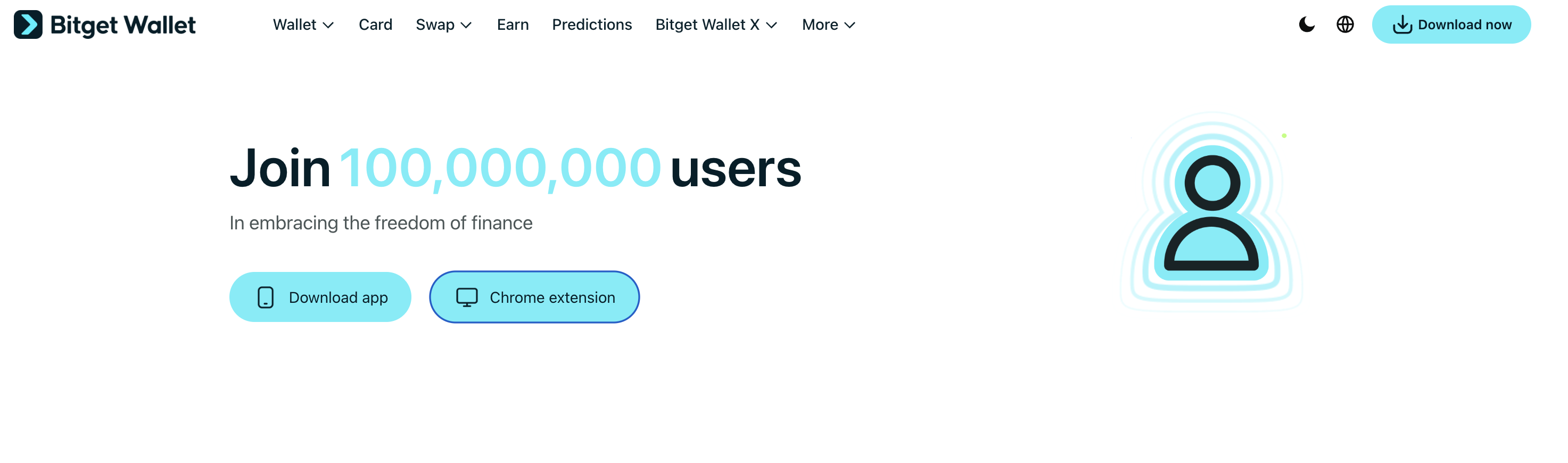
1. Go to the official Bitget Wallet website and select Chrome extension.
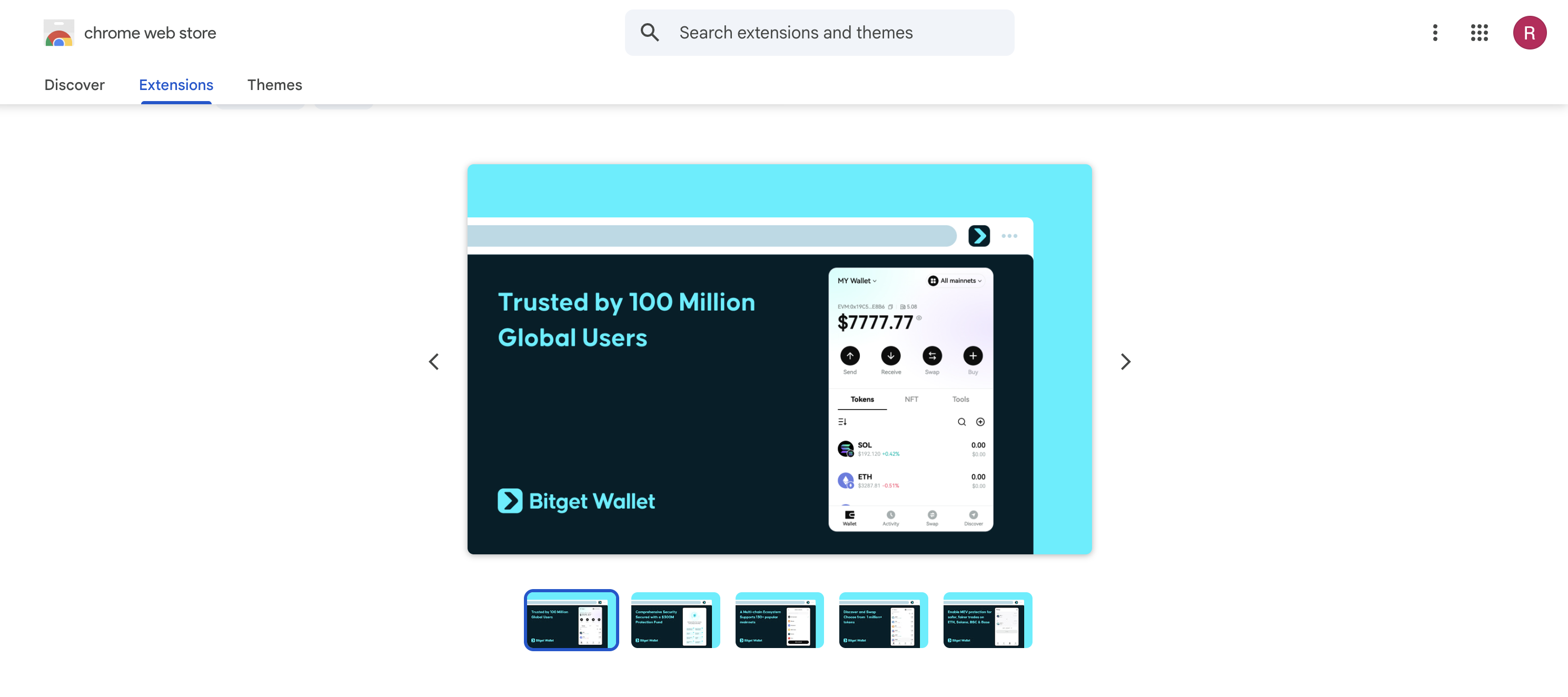
2. On the Chrome Web Store, check that the listing is Bitget Wallet, then select Add to Chrome.
3. Review the permissions shown by Chrome and select Add extension to confirm.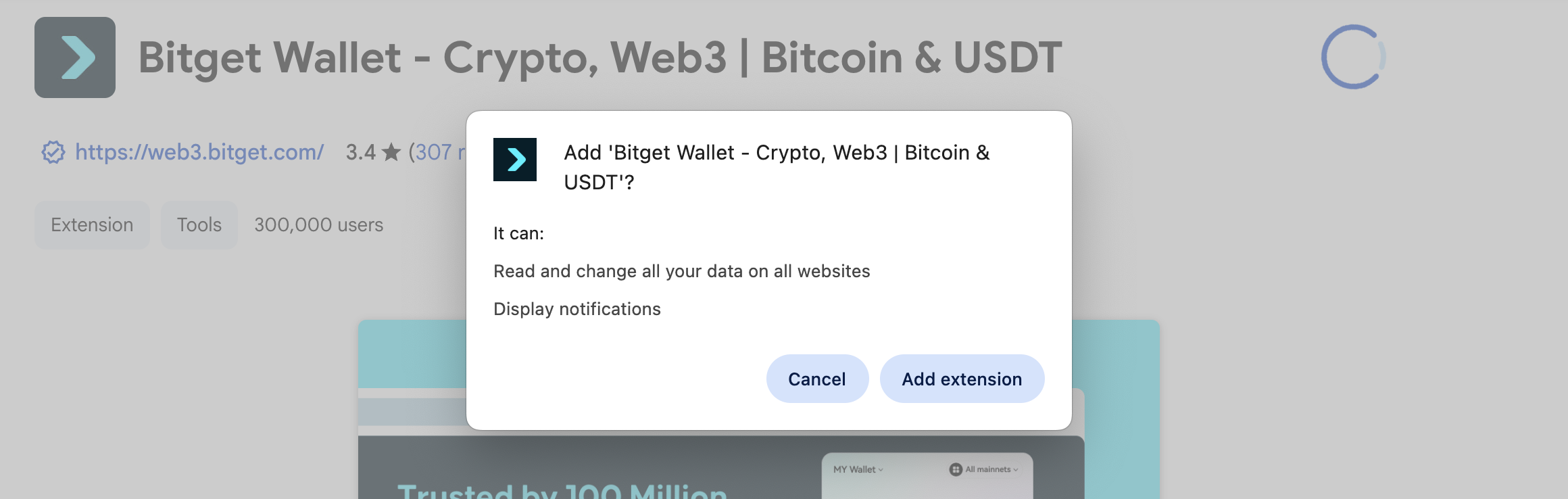
4. Open Chrome's Extensions menu and find Bitget Wallet. Select the pin icon to keep it visible in your toolbar.
5. Open Bitget Wallet and choose Create new wallet or Import an existing wallet to continue setup.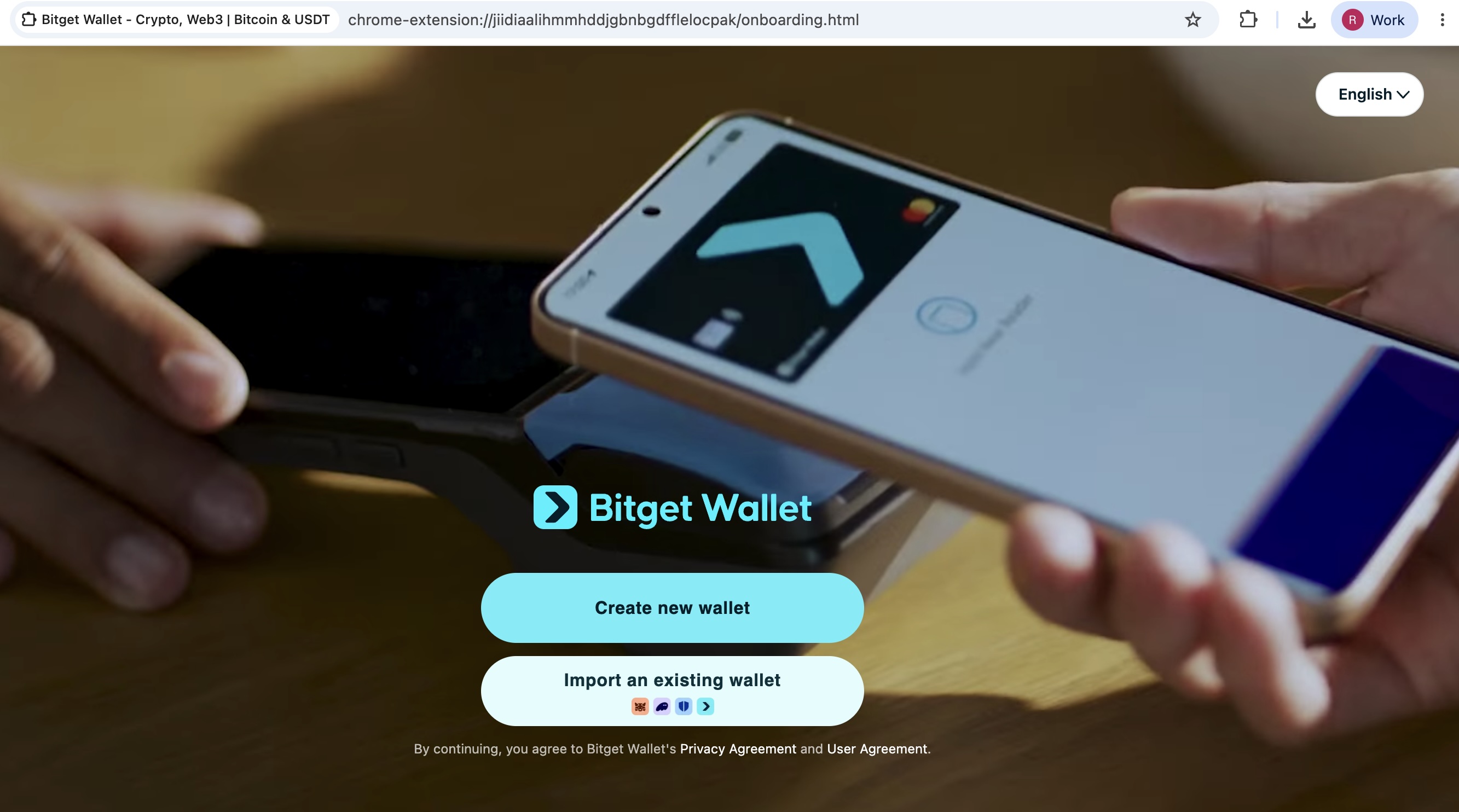
Get Your Bitget Wallet Extension
How do you set up the Bitget Wallet extension?
After installing the extension, open Bitget Wallet from the Chrome toolbar. You can then create a new wallet or import an existing wallet.
How do you create a new wallet?
If you don't already have a wallet you want to import, you can create one from the extension.
The setup process works as follows:
1. Open the Bitget Wallet extension and select Create new wallet.
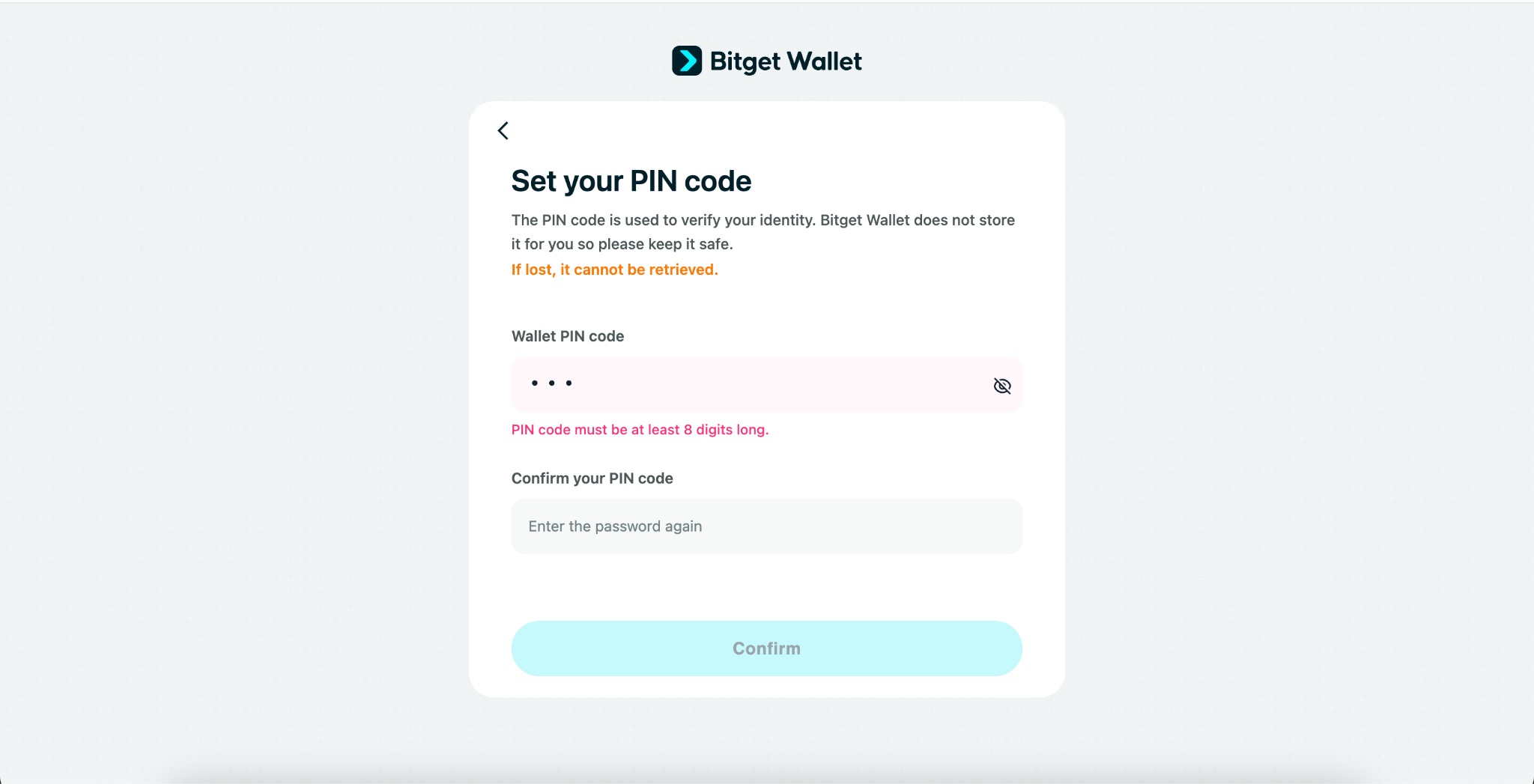
2. Set a wallet PIN code. The PIN must be at least eight digits long.
3. Enter the PIN again to confirm it, then select Confirm.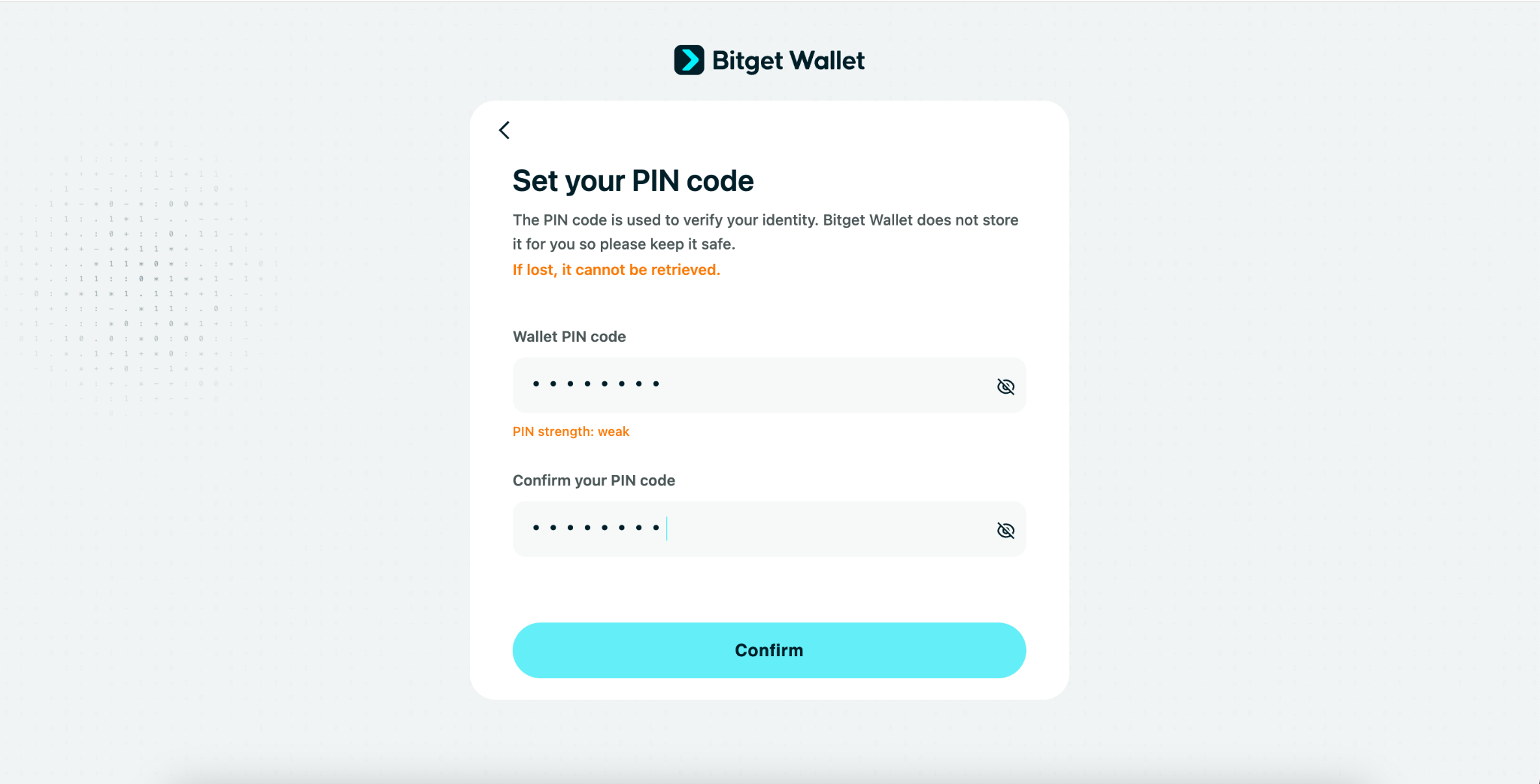
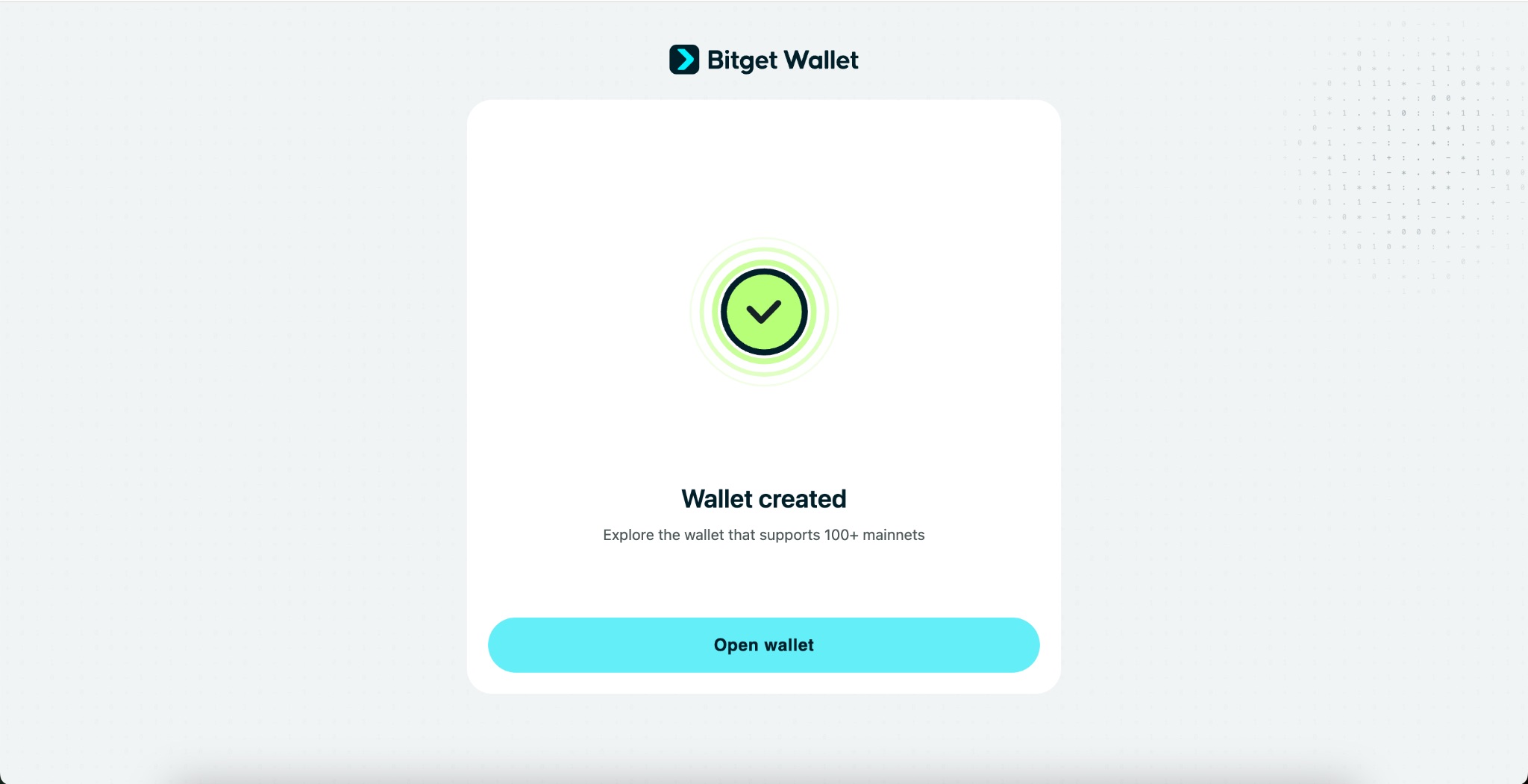
4. When the Wallet created screen appears, select Open wallet.
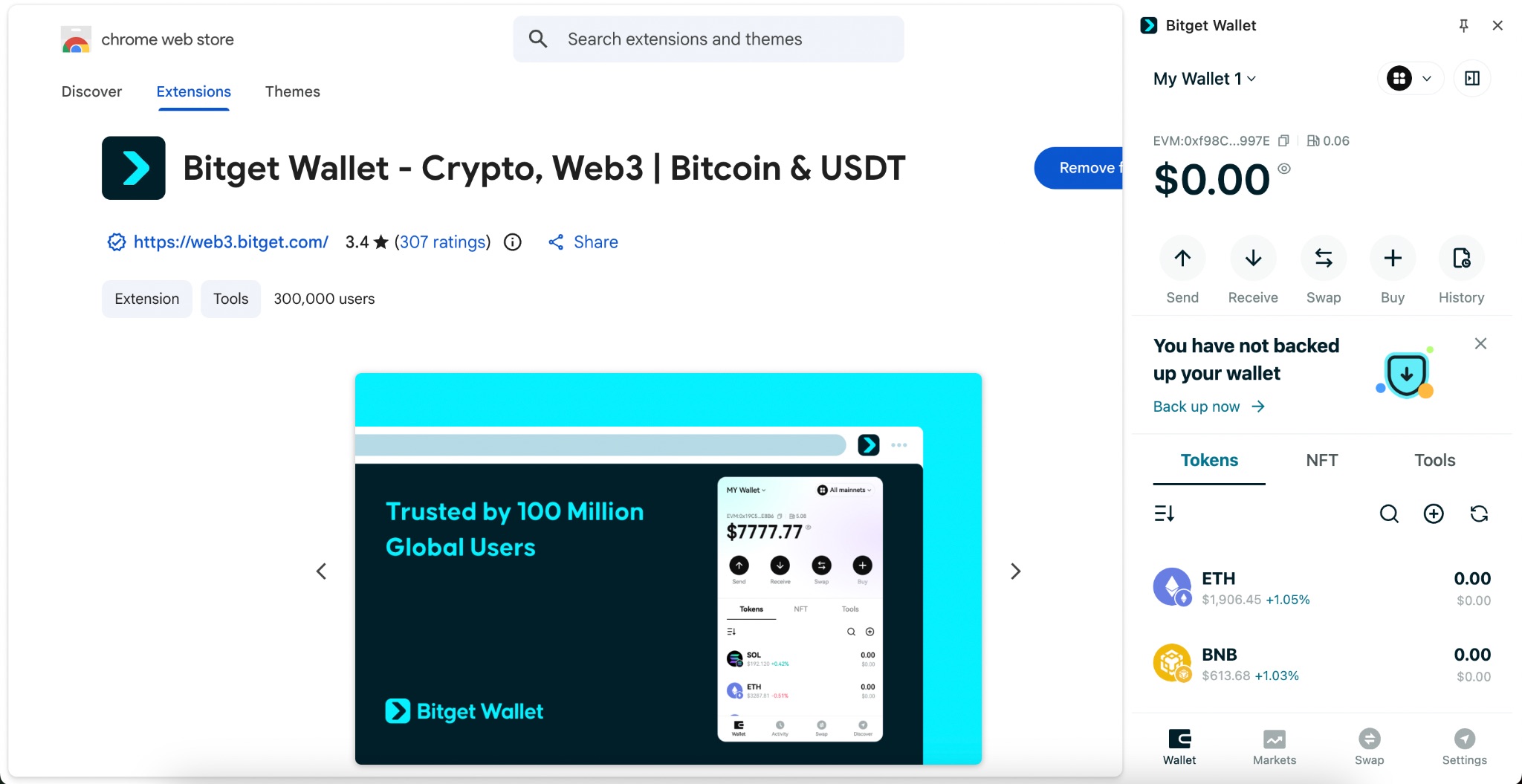
5. Your new wallet will open in the extension. You can then select Back up now to back up your wallet. Keep your recovery information secure, as you may need it to restore access to your wallet.
How do you import an existing wallet?
If you already have a wallet, select Import an existing wallet from the Bitget Wallet extension.
1. Select Import an existing wallet.
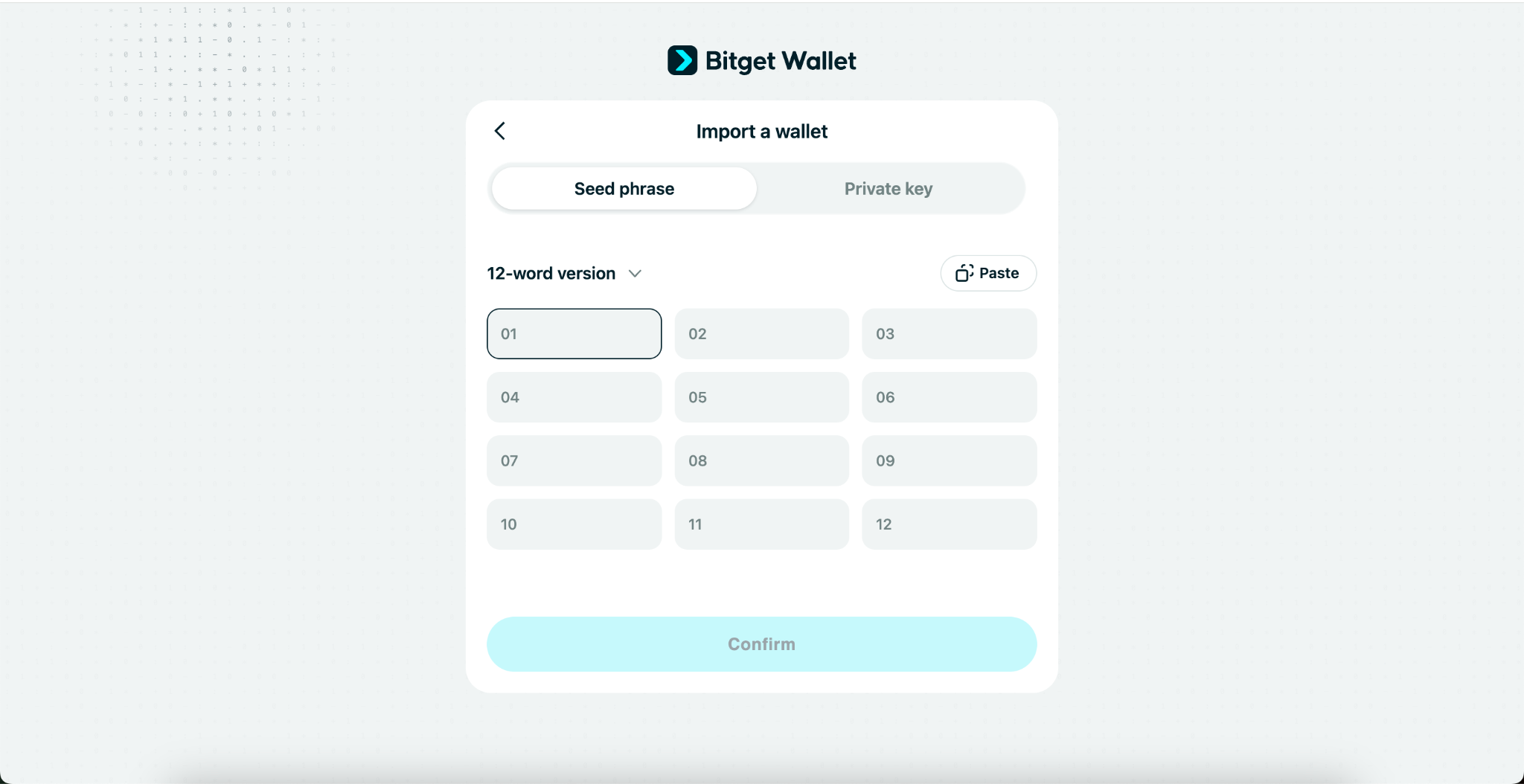
2. Choose Seed phrase or Private key as your import method.
3. If using a seed phrase, select the appropriate version and enter the words in the correct order. The screen shown here defaults to the 12-word version.
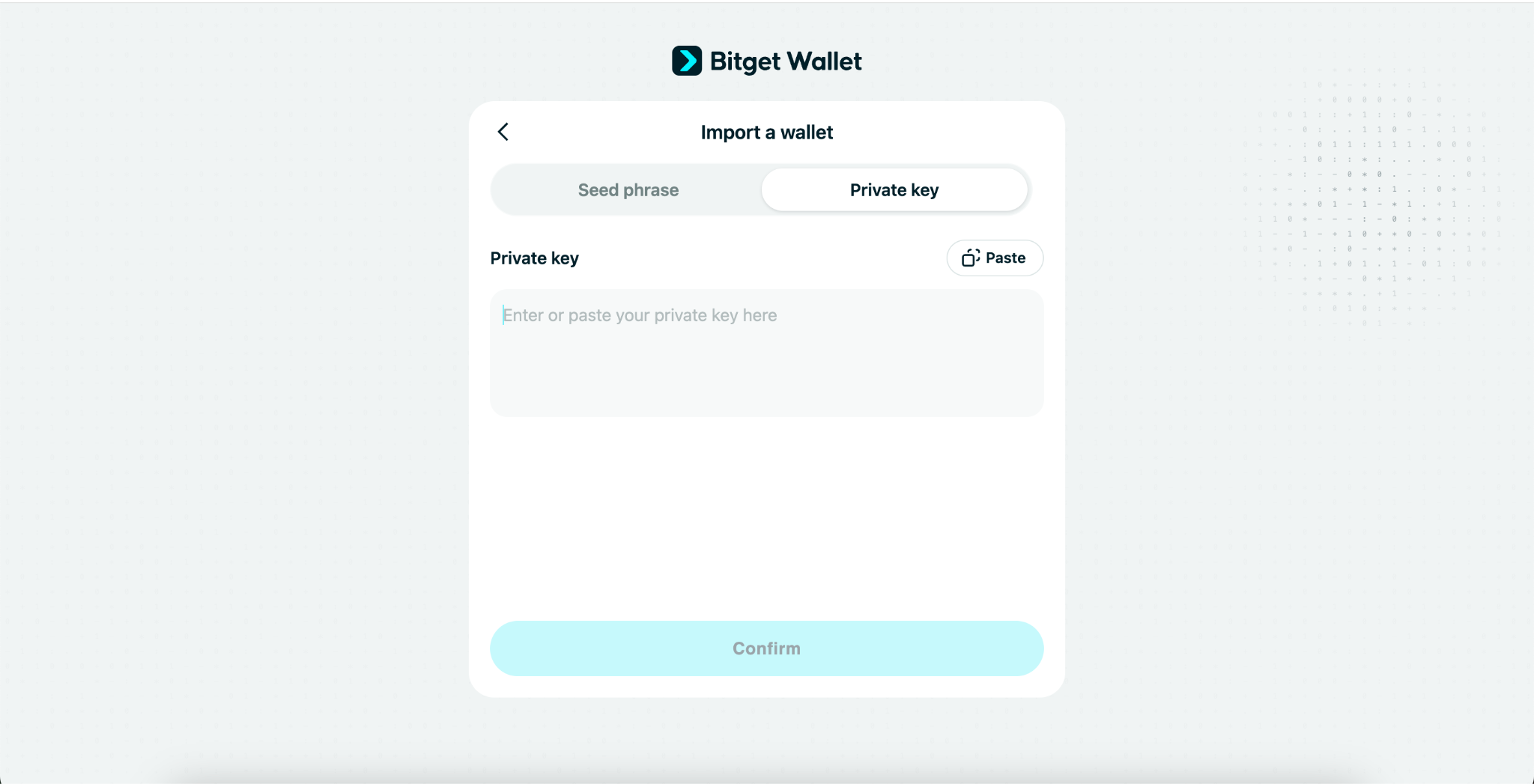
4. If using a private key, enter or paste it into the Private key field.
5. Select Confirm and follow the remaining prompts to complete the import.
Only enter recovery credentials after confirming that you're using the official Bitget Wallet extension. Anyone who obtains a private key or seed phrase may be able to gain control of the associated wallet.
How do you use the Bitget Wallet extension?
Once your wallet is set up, you can open the extension from the Chrome toolbar to manage your crypto and access Web3 features.
From the wallet, you can:
-
Send and receive supported crypto assets
-
Swap tokens
-
View your wallet balance and transaction history
-
Connect to supported dApps
-
Manage assets across supported blockchain networks
When connecting to a dApp or making a transaction, review the wallet address, network, amount, and any permissions shown before approving the request.
Is the Bitget Wallet extension safe?
Bitget Wallet is a self-custodial wallet, so protecting access to the wallet and its recovery information remains the user's responsibility.
Bitget Wallet documents several security measures across its wallet infrastructure, including private-key encryption, transaction risk detection, phishing alerts, authorization risk detection, and security audits of parts of its core code. Security features don't remove the need for careful wallet use.
When using the browser extension:
-
Never share your seed phrase or private key.
-
Check the website address before connecting your wallet.
-
Review transaction and signature requests before approving them.
-
Keep Chrome and your operating system updated.
-
Review and revoke unnecessary dApp authorizations where appropriate.
A legitimate wallet extension cannot prevent every form of user error, phishing, malicious smart contract interaction, or device compromise.
How do you check that you're downloading the real Bitget Wallet extension?
Download the extension through the official Bitget Wallet website, which links directly to its Chrome Web Store listing. The official extension is listed as Bitget Wallet - Crypto, Web3 | Bitcoin & USDT and links back to web3.bitget.com. Avoid installing the extension from unfamiliar websites or links shared through messages or social media.
Conclusion
The Bitget Wallet extension provides a convenient way to access a self-custodial wallet from Chrome. With the extension installed, you can manage your wallet and interact with Web3 applications directly from your desktop browser.
For users who regularly access Web3 from a desktop, the browser extension keeps wallet functions within easy reach while maintaining self-custody.
Get Your Bitget Wallet Extension
Frequently asked questions
Is the Bitget Wallet extension free to use?
There is no charge to download the Bitget Wallet extension from the Chrome Web Store. Transactions made through the wallet can still carry network fees, depending on the blockchain and type of transaction.
Which browsers support the Bitget Wallet extension?
The current official Bitget Wallet download and installation flow provides a Chrome extension. Check the official download page for current availability before installing the wallet on another browser.
How do I download and install the Bitget Wallet extension?
Go to the official Bitget Wallet download page and select the Chrome extension. Follow the link to the verified Chrome Web Store listing, select "Add to Chrome," confirm the installation, and open the extension from Chrome.
Is the Bitget Wallet extension safe?
Bitget Wallet is a self-custodial wallet with security measures including private-key protection and risk detection. Users are still responsible for protecting recovery information, checking wallet requests, and avoiding phishing or malicious sites.
Can I use the Bitget Wallet extension on mobile?
The browser extension is intended for desktop use. Bitget Wallet provides separate iOS and Android apps for mobile access.
How many blockchains and tokens does Bitget Wallet support?
Bitget Wallet currently states support for 130+ blockchains and more than 1 million tokens. These figures can change as support for new networks and assets is added.
Risk disclosure
Please be aware that cryptocurrency trading involves high market risk. Bitget Wallet is not responsible for any trading losses incurred. Always perform your own research and trade responsibly.

 What Is a Crypto Wallet Address? Examples and How to Find It2026-08-12 | 3 mins
- What Is a Cold Wallet? A Beginner's Guide to Offline Crypto Storage2026-09-25 | 3 mins
- Fintech Wallets vs. Crypto Wallets: What’s the Difference? (2026 Guide)2026-07-24 | 5 mins



